Creating an Event
Creating an event is fairly easy, but there are a few items that need to be checked off to ensure the right people are getting the information. New this season we are implementing a calendar that syncs with the main website skirose.com to allow both staff events and public in-season events are together ensuring all of our staff is up to date.
Create an event
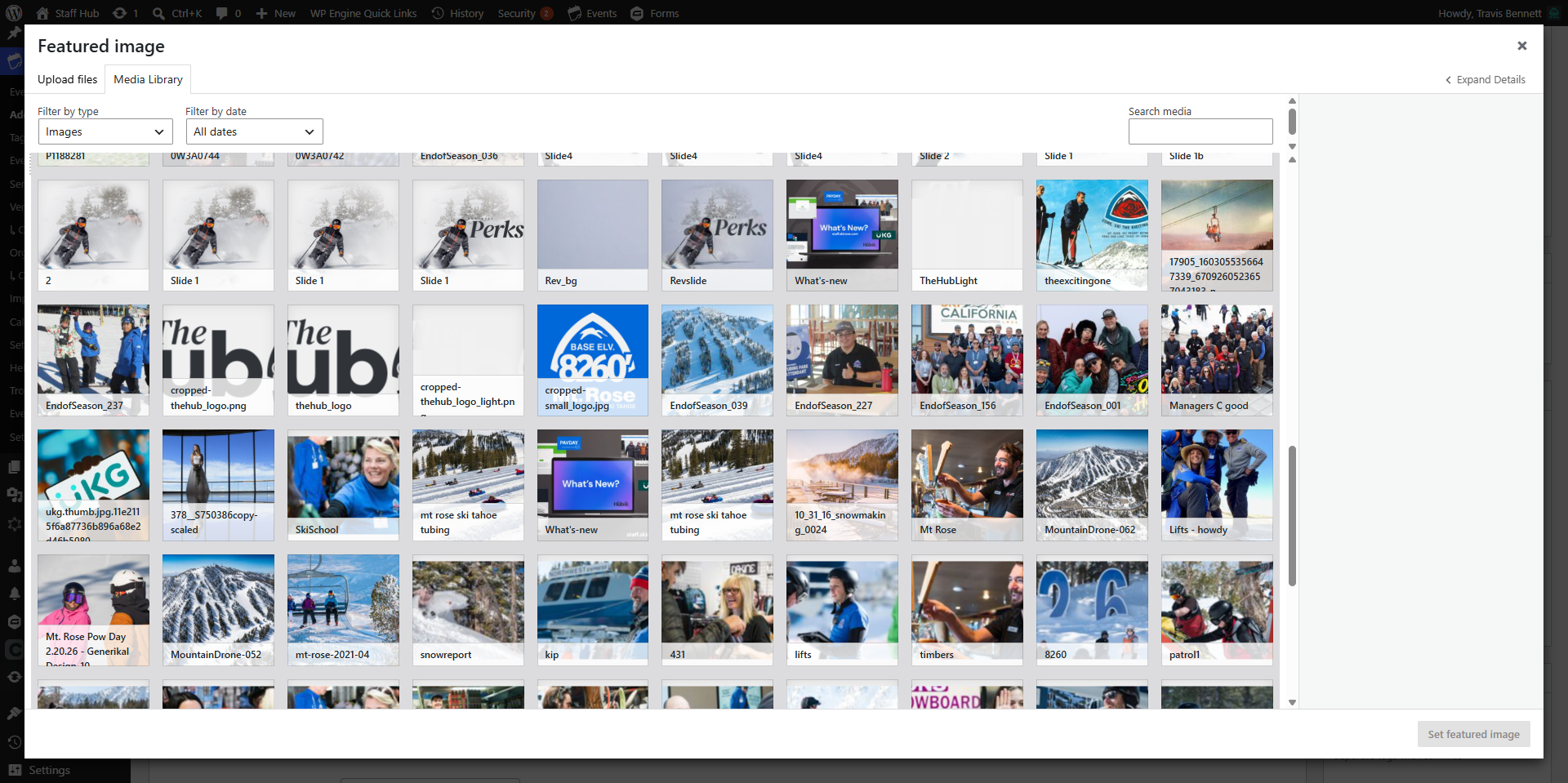
- Select Events -> Add Event
- Add Title and Details
Events don’t use the same customizable page builder features so keep the descriptions nice and clean and organized. The Date and Times are part of the event functionality so you don’t have to spell it all out unless you want to include a detailed full agenda. Please put that low in the post so it doesnt interfere with description. - Pasting in Content
If you are pasting in text from a word doc or some other place on the web, be sure to click the paste as plain text option to remove any unwanted formating.
Featured Image
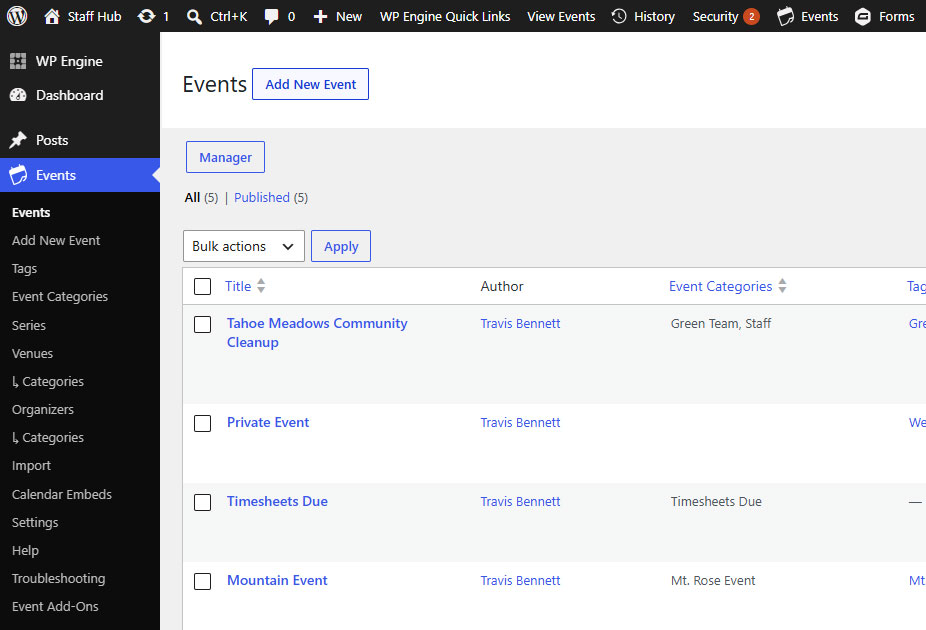
- Upload a Featured Image
Featured images are very important as they are used in the main header area at the top of pages, posts and events. They are the small thumbnails that show up when people are searching for content. Additional images can be inserted into your content but this one is the main image that should reflect what the content is about. keep in mind these images will get cropped to either a 16:9 or 4:3 ration depending on where they are being used. Keep that in mind when selecting the image. A landscape (not portrait) image is preferred. - You can also select from the media library. All images uploaded in the past will remain in the library.
- Don’t upload 25 megabyte images please. While the images are automatically compressed, they take up server space and sometime will make the site slow down. Please keep to under 2mb.
Date, Time and Venues
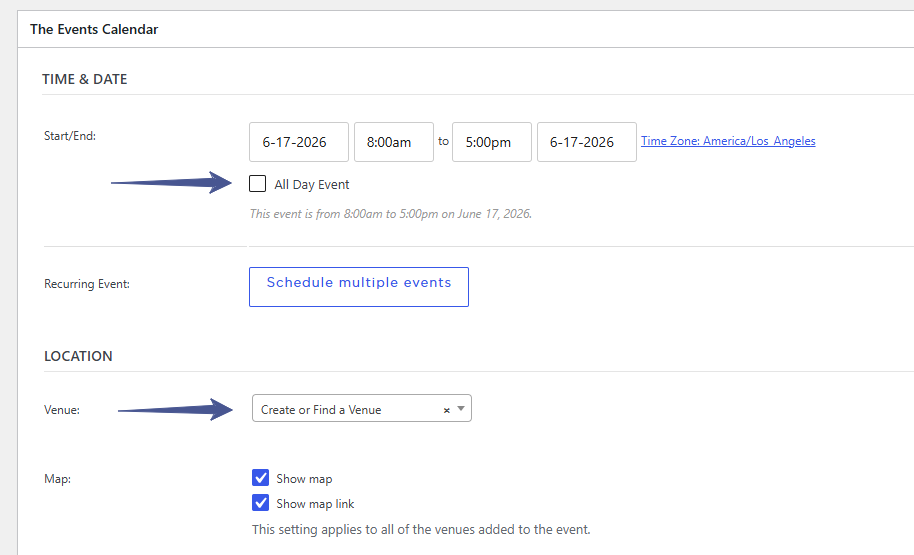
- Use Calendar to select day or muliple days of event.
Check All Day if needed. - Select Venue Location.
A handful of pre-made event venues have been entered. Feel free to create a new venue if needed. Refrain from adding a bunch of random on hill locations please. Bottom of lifts or places on runs are not venues. Put those descriptions in the event details.
Which Event Calendar
- VERY IMPORTANT!
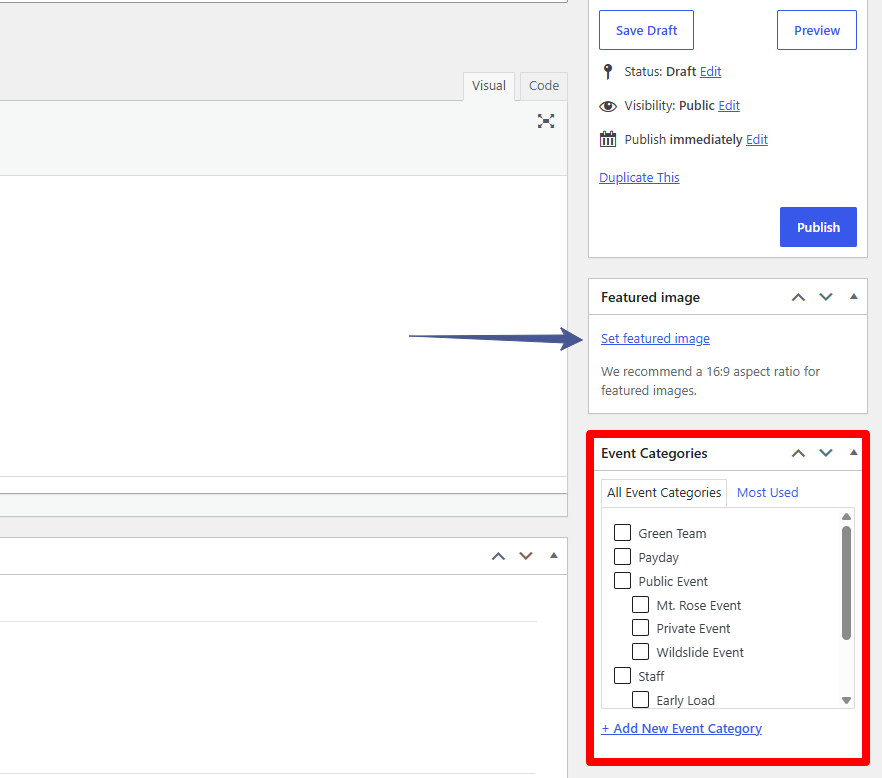
Who should see this content? Public Staff, Only Managers? - Select the Event Category for the event. This MUST be done for every event.
These are Public facing event categories that will show on the skirose.com event page, the weddings page and or the ski team pages so please make sure that you select the appropriate categories prior to publishing.
Selecting multiple category items is okay, however try to limit it to the most appropriate. We dont want to add too many sub categories because it will get too granular and make things harder to find if we go overboard.
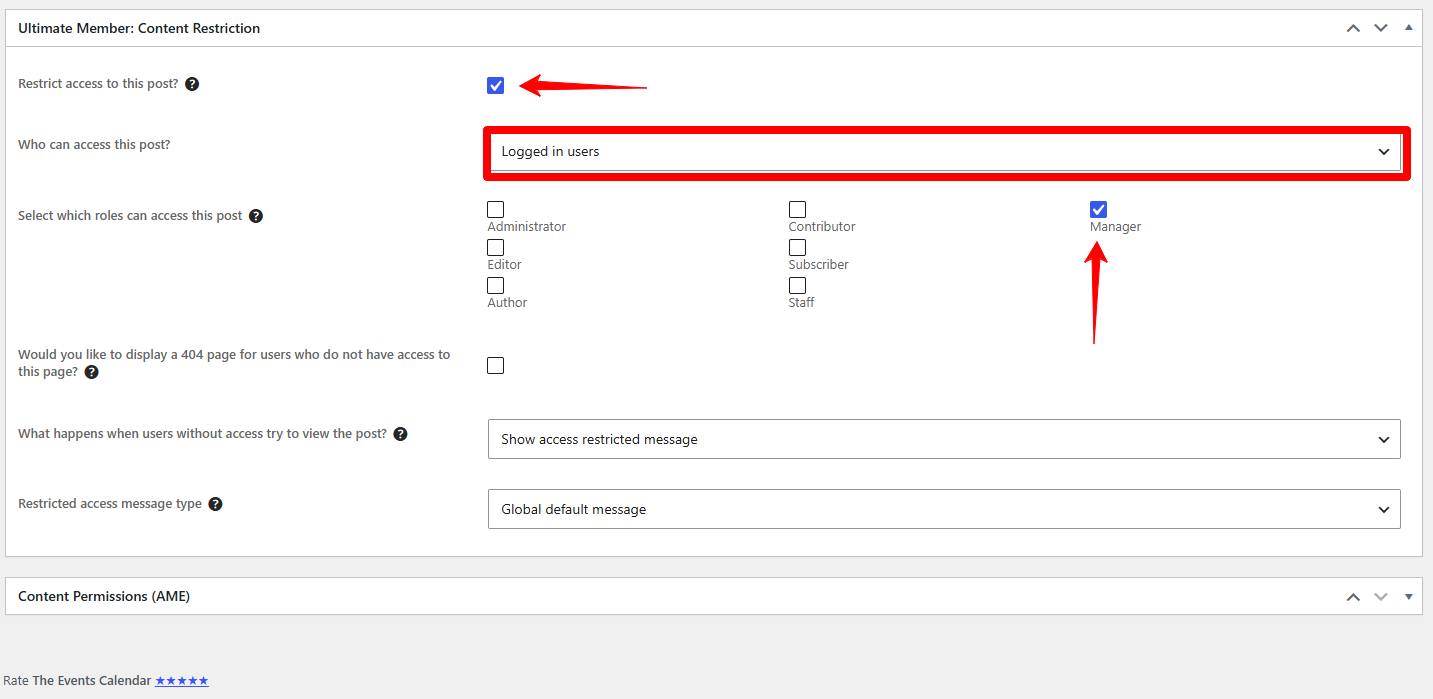
Managers Only – If you want to create something internal that is not public facing or for all staff use the restrict option to hide it unless the user signed in has manager access. This is useful for
Managers Internal Options Apply
See the Tutorial on Membership/Access for the full details on content restrictions and when to use.
Managers Only – If you want to create something internal that is not public facing or for all staff, use the Ultimate Member: Content restriction option to hide it unless the user signed in has manager access. This is useful for Meetings, payroll notification, HR deadlines etc.